
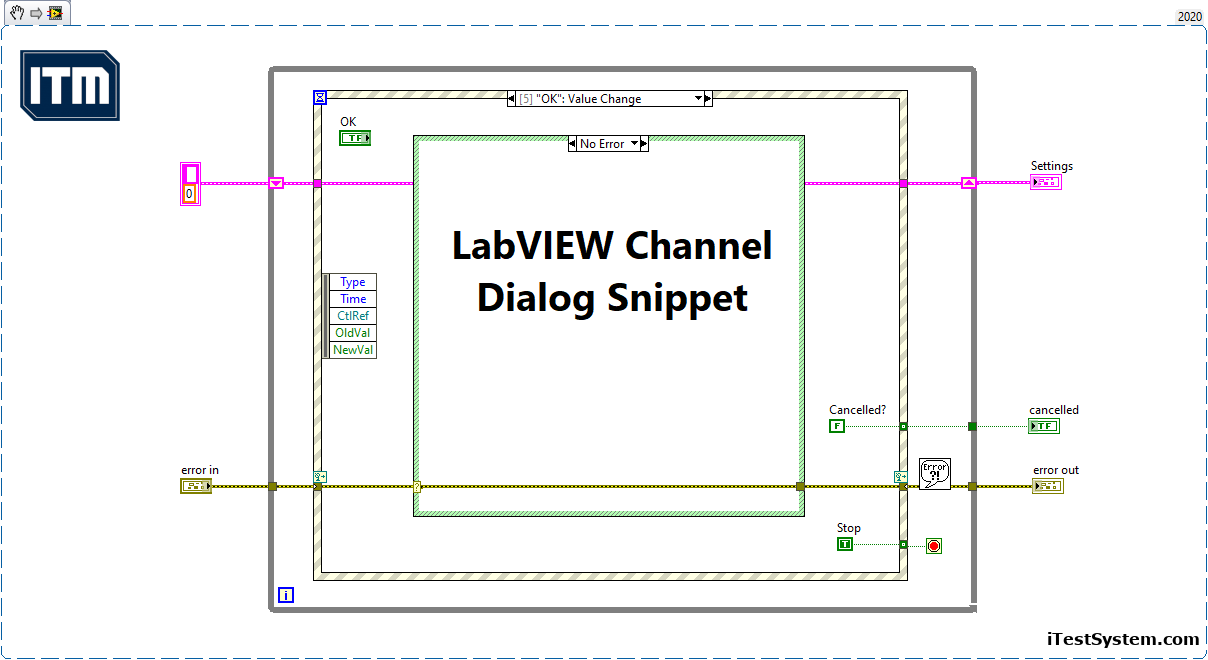
Here is a trick for creating a simple dialog in LabVIEW. Follow these simple steps to quickly create your next dialog in less than a minute.
- Create a New VI.
- Drop the VI Snippet (Figure 1) above on the block diagram.
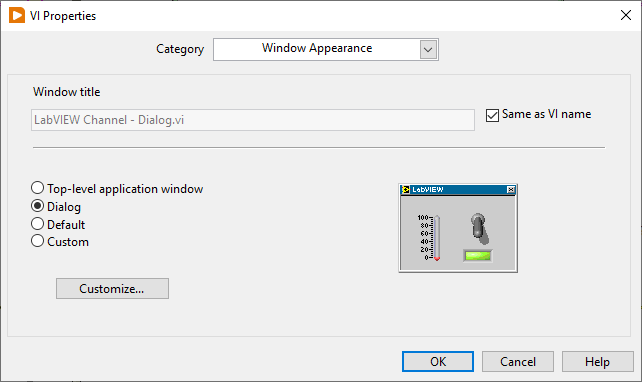
- Update the Window Appearance setting in VI properties to dialog (see Figure 2 below).
- Optional: Update with a Custom Window title.
- Save and run the VI.
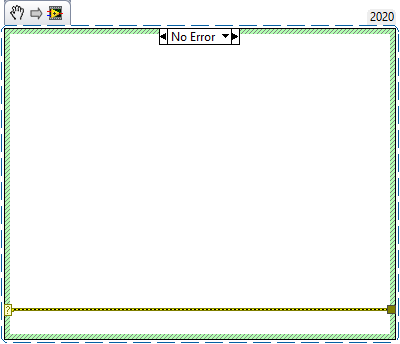
In the dialog template snippet I also used another useful snippet – the error case structure. This simple VI snippet will help you save time with your next project.
What’s next?
Common snippets for folder creation and cluster sorting.
Building your own LabVIEW dialogs and snippets? Talk to the engineers behind ITM’s LabVIEW development work.
Related solutions
Software
iTestSystem and the LabVIEW-based software platform behind ITM’s data acquisition tools. Explore →
Data Acquisition
DAQ hardware built to work hand-in-hand with the LabVIEW software driving it. Explore →
Consulting
Engineering consulting for custom LabVIEW development and test software architecture. Explore →
Recent insights
-
 Aerospace Engineering, Aerospace Testing, Blue Origin, Engineering, ESCAPADE Mission, Launch Vehicle Engineering, New Glenn, Rocket Reliability, Strain Measurement, structural health monitoring, Structural Testing
How Pre-Launch Structural Testing Ensures Mission Success
When Blue Origin’s New Glenn rocket successfully launched NASA’s ESCAPADE mission to Mars, it marked a historic step forward for commercial launch technology — and a testament to the unseen engineering that happens long before a vehicle ever reaches…
-
 6D Testing & Analysis, Accelerometers, data acquisition systems, design validation, Engineering, engineering measurement, experimental modal analysis, impact hammer testing, mechanical engineering, modal testing, structural dynamics, Structural Testing, vibration testing
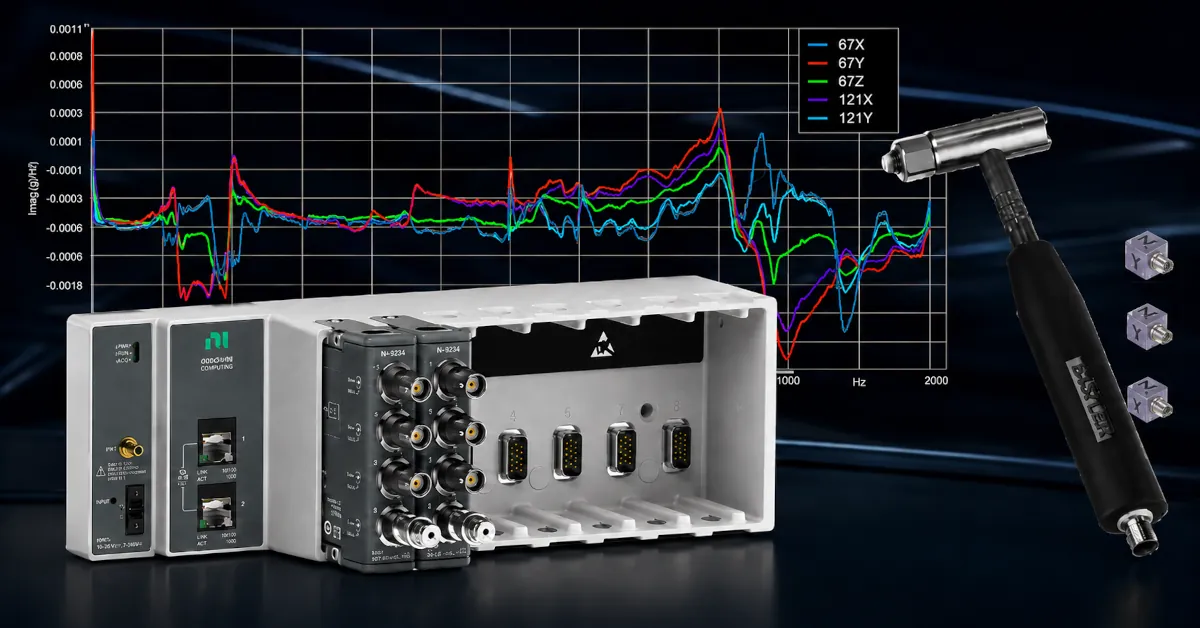
Free Engineering Guide: How to Perform Experimental Modal Analysis for Better Structural Insight
Understanding how structures vibrate—and why—is essential across nearly every engineering discipline. Whether you’re working on rotating machinery, industrial equipment, robotics, medical devices, heavy vehicles, consumer products, or building-scale…
-
 AWS IoT Analytics, cDAQ-9189, Channel Synchronization, CompactDAQ, Condition-Based Maintenance, Edge-to-Cloud High-Channel Datalogging, Engineering, Instrumentation, iTestSystem, iTestSystem Automated Analytics, iTestSystem Notification Service, NI-9236, NI-9469, Strain, Stress, structural health monitoring
High Channel Count Synchronous Datalogging
When a manufacturer needed to validate the structural performance of a 38-ton on-highway vehicle, ITM deployed a 200+ channel synchronous datalogging system capable of capturing accelerometer, strain, GPS, and speed data at nearly 2 kS/s per channel…